
Why are we rated the top security system provider in the state of Texas?
- We have proudly served home and business owners in Texas since 2011
- Alarm.com powered technology for homes and businesses. Allows for complete control and convenience.
- 24/7 professional security system monitoring by UL listed security monitoring facilities
- Serving Austin, San Antonio, Houston, and Dallas-Fort Worth
- Licensed Texas security professionalls. We are regulated by the Texas DPS. Our License # is B17442.
WHAT IS INCLUDED IN A WELL DESIGNED SECURITY SYSTEM?
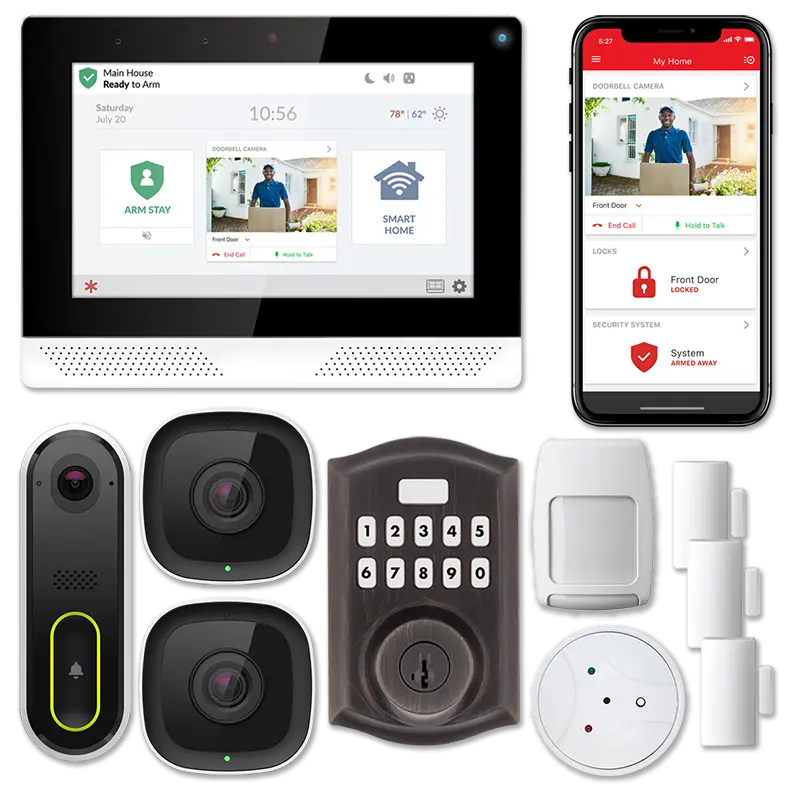
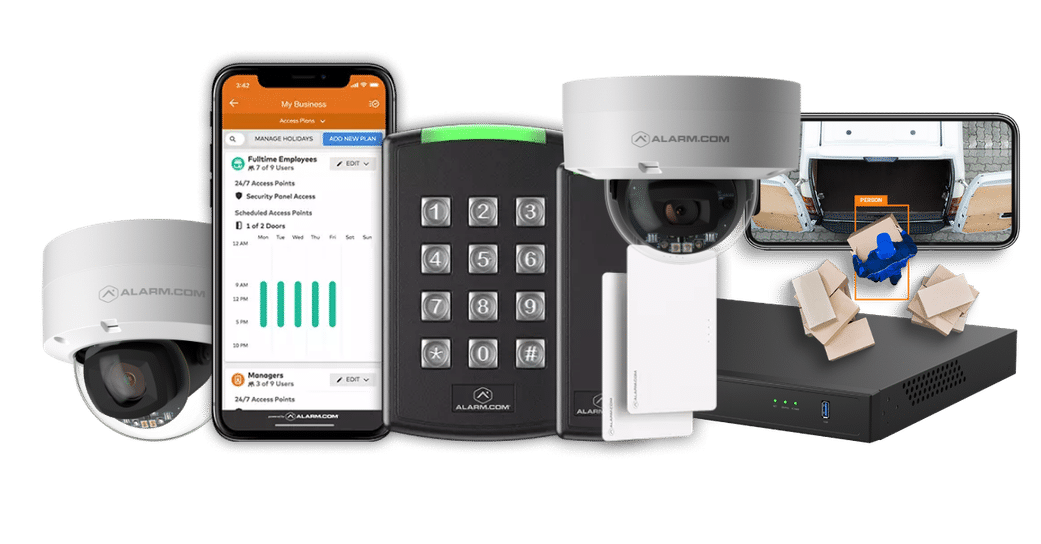
Custom security systems provided by True Protection include professional installation, 24/7 alarm monitoring, cellular communication, battery backup, door and window sensors, motion detection, HD cameras, video doorbells, smart locks, mobile-app control, access control and CCTV systems and police, or medical response.
Home Security
- Alarm Systems
- Cameras
- Smart Locks
- App Access
- Professional Monitoring
Business Security
Commercial Security
- Video Surveillance
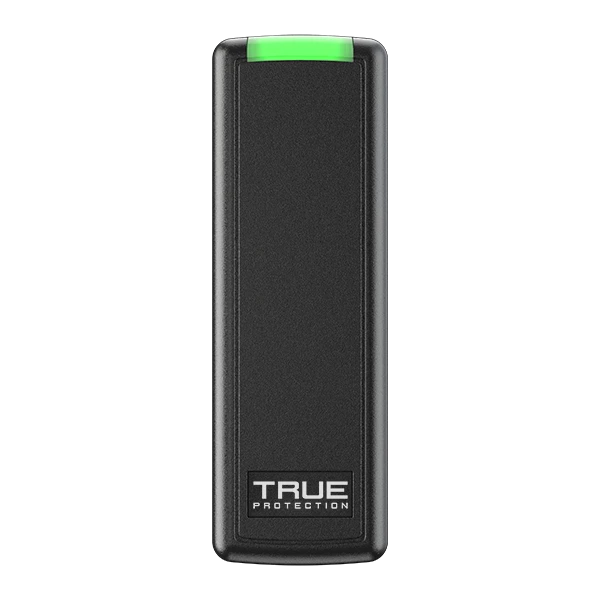
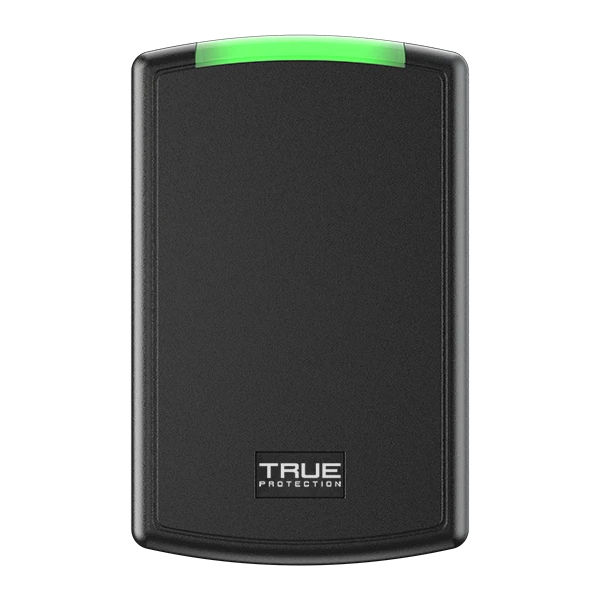
- Access Control
- Structured Cabling
- Multi-site Management




What are the most frequently asked questions we have when designing home security systems?
- Does True Protection require a contract? -At True Protection we have a variety of options from month-to-month to the industry standard 36 months.
- What does professional security monitoring include? -Professional security system monitoring provides 24/7 response to alarm events through advanced technology provided through Alarm.com and our UL-Listed facility.
- Can True Protection re-use or upgrade my existing security equipment? -Many times we can utilize some or all of your existing equipment to reduce costs.
Popular Products & Services
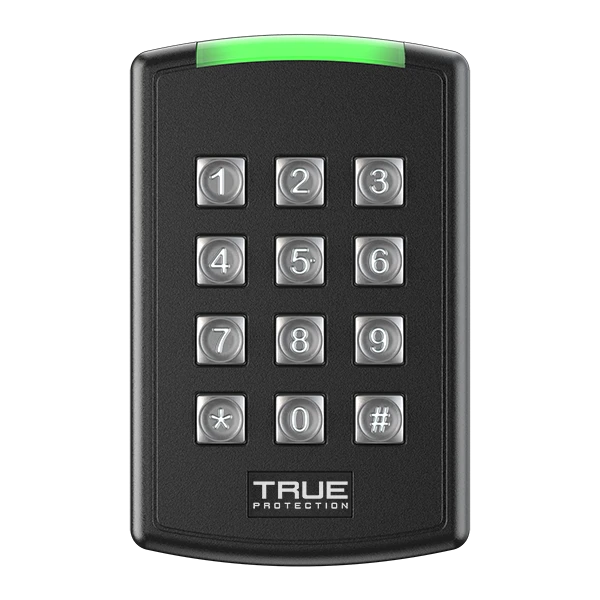
We offer a variety of security systems for your home and business. Our systems at True Protection are designed to give you peace of mind and protect your business and home from personal harm and/or property loss. We also go a step beyond, offering access control and video surveillance installations to better protect your property.
Explore current home security deals for savings on monitored protection and equipment.

Why Texans Choose True Protection
Protect, Control & View From Anywhere, Anytime.
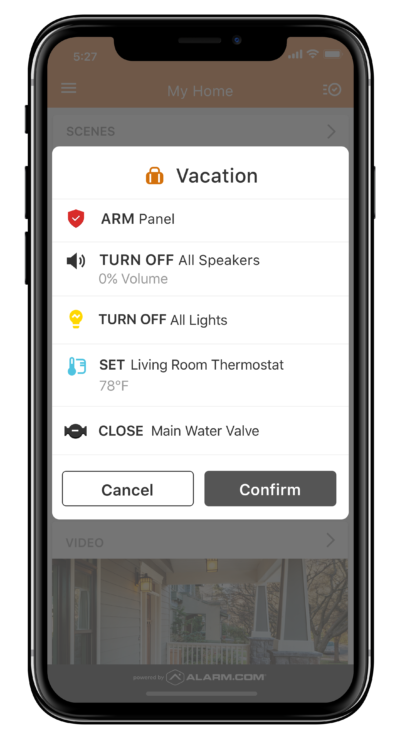
Alarm.com Powered Connected Home
Honey, Did We Remember to Lock the Door?
Check from your phone and keep your vacation on track. Get automated notifications based on geofencing rules and A.I. powered analytics.
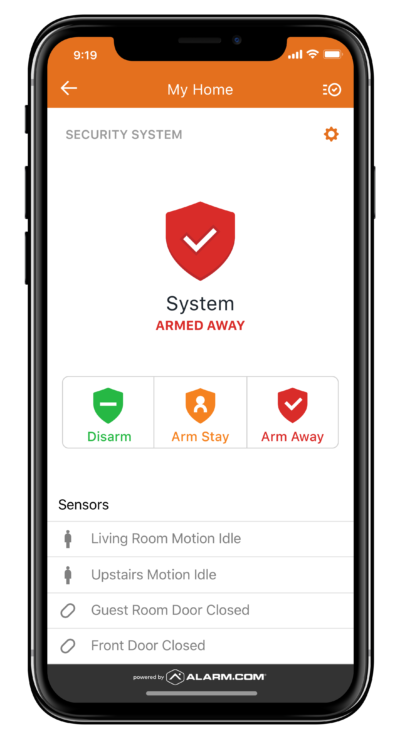
True Powered Security System
Did we remember to arm the security system?
With a True Protection security system, arm or disarm your security system from anywhere in the world with the push of a button.
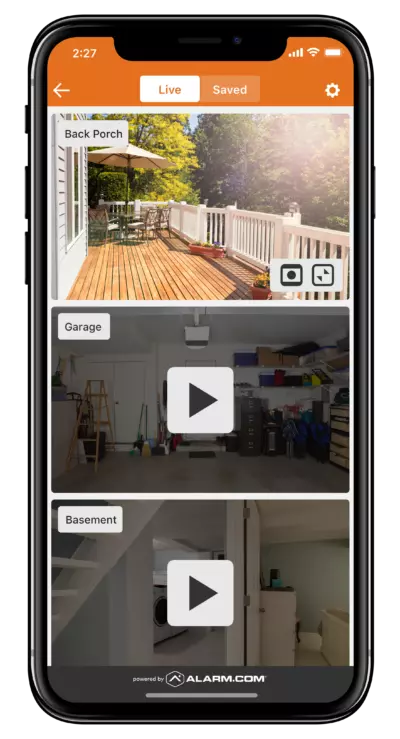
Video Surveillance Packages
Monitor Your Home or Business From Anywhere
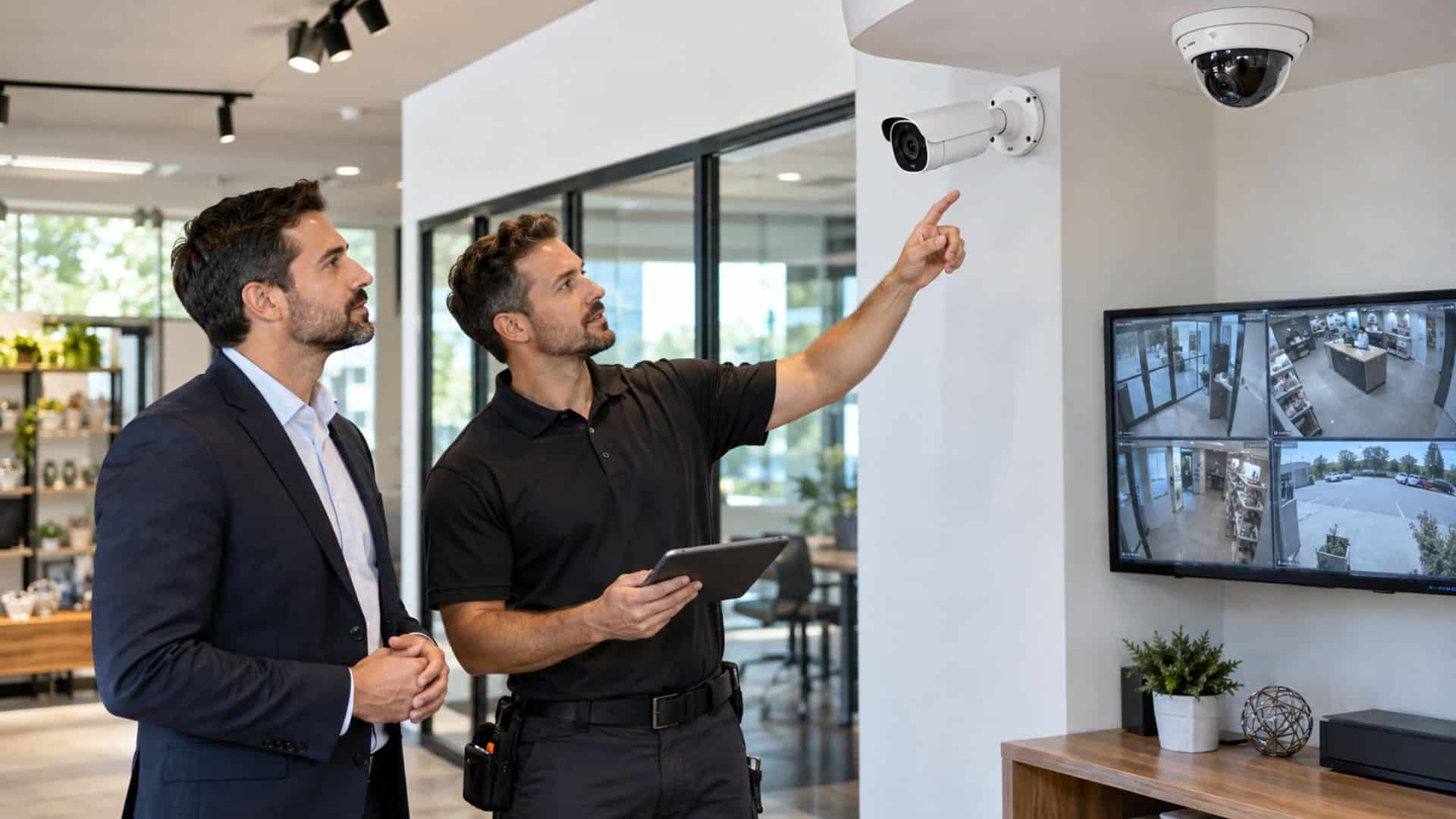
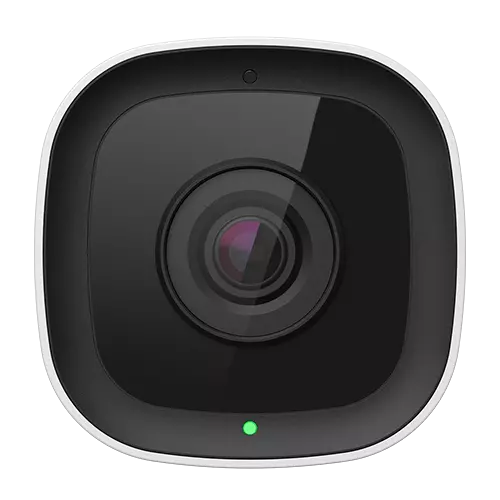
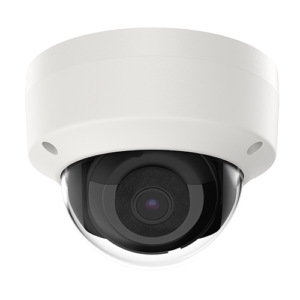
Remotely view your home or business with True Protection's video surveillance packages powered by smart analytics.
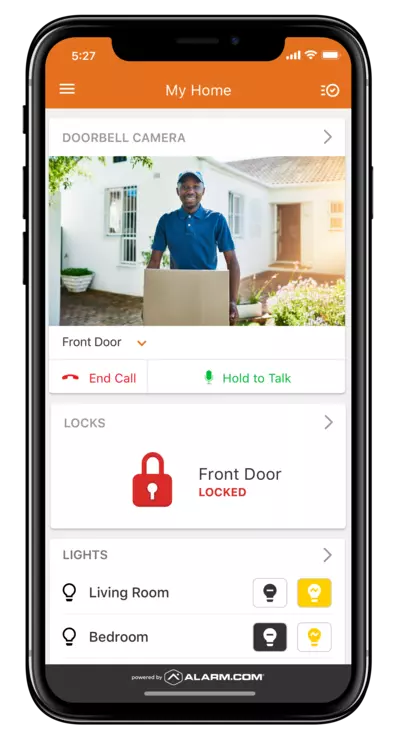
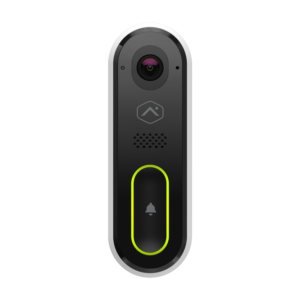
Alarm.com Doorbell Camera
See who's knockin' on your door.
Use your HD 2-way video doorbell camera to see who is at the front door without having to interrupt your family dinner.
Getting Started with True Protection
1. Contact True Protection
Fill out our form or call us at 1-800-393-6461 to receive a free quote for your home or business.
2. Customize Your System
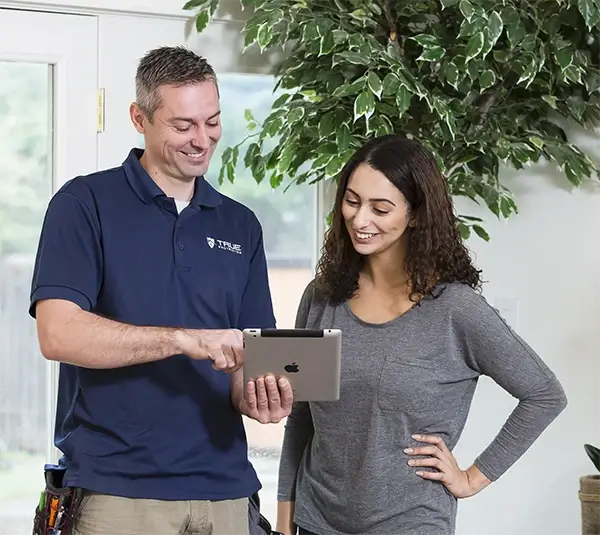
Speak with one of your local experts to help you find the best home or business alarm system for you.
3. Schedule Your Installation
After customizing your system, we will schedule a quick and painless installation at your convenience.
