

Android Widgets
Android widgets are shortcuts that allow you to trigger actions on the Alarm.com app with the touch of a button.
Android Widget Requirements
- Scene Compatibility: Your system must support scenes. Systems without scene compatibility do not support Android widgets.
- Android 4.0 or Higher: Widgets require devices running Android OS 4.0 or later.
- Alarm.com App Version 3.7+: Ensure the Alarm.com app version is 3.7 or higher.
- Seamless Login: Stay logged in with the Keep me logged in option enabled. Otherwise, you will be prompted to log in when attempting to trigger a scene.
Additional Information
- Android widgets are used exclusively to trigger scenes.
- You can set up one widget per scene, with one scene command per widget.
- In app versions 3.7, widgets were sized 2×1, requiring custom launchers for resizing. In version 3.8+, widgets are 1×1 by default and can expand horizontally.
- Depending on your Android phone model, the widget may be listed as “Scenes” instead of “Alarm.com” in the widgets menu. Search for both.
To Add the Alarm.com Widget for Android:
- Navigate to the Android phone’s Widgets menu.
Note: Accessing the Widgets menu can be a different process for different Android devices. Sometimes it will be an option from the Apps menu. Other times it will be accessed by pressing and holding the home screen to get the Home Screen menu to appear.
- Tap to select the Alarm.com option by pressing and holding the Alarm.com option or custom app name (e.g., Guardian or AMP) that appears.
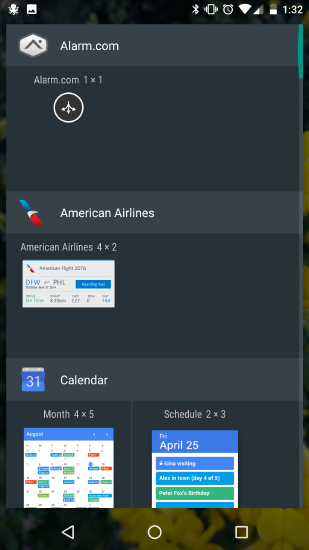
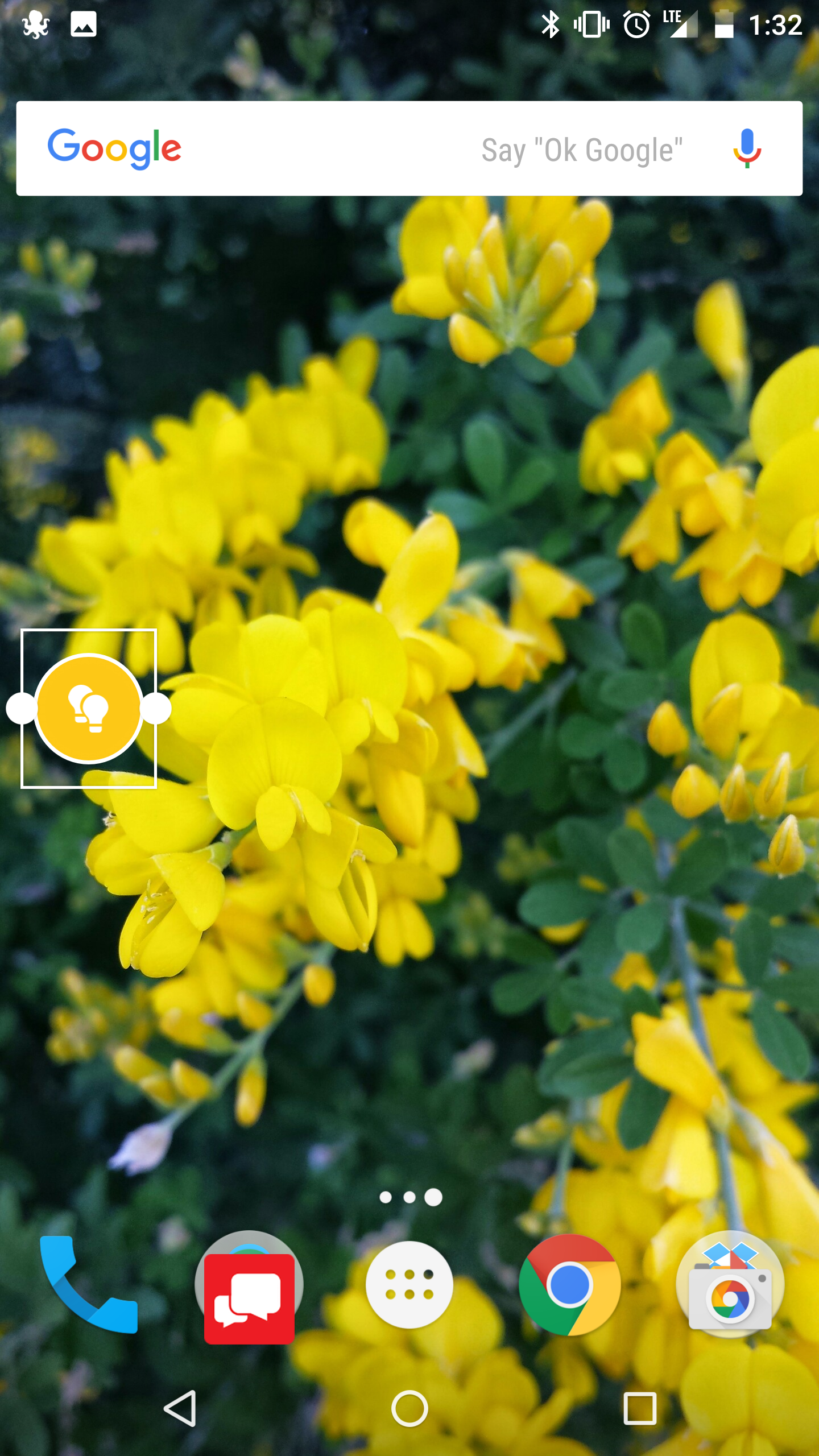
- Once the Alarm.com widget is selected, drag and drop the widget to the preferred location.
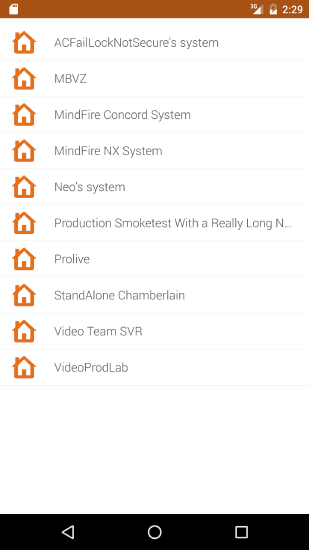
- If Linked Systems is set up on the customer’s login, there will be a menu that asks you to select which system’s scene this widget will trigger. If the customer’s login only has access to one system, proceed to the next step.
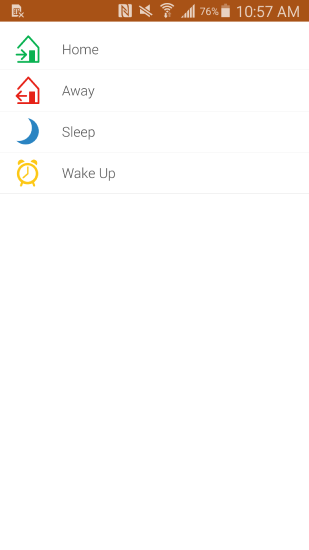
- Tap to select which scene this widget will trigger. These scenes must already exist, so if a customer would like to add a widget for something they have not programmed yet, they will first have to create the scene. For more information on how to create a scene, see Create/edit a Scene.
- After selecting the scene, it will appear as a widget on the home screen in the place previously selected. The widget can be moved or expanded by pressing and holding the widget until small dots appear to allow for expansion. Drag and drop the dot to expand the widget size.
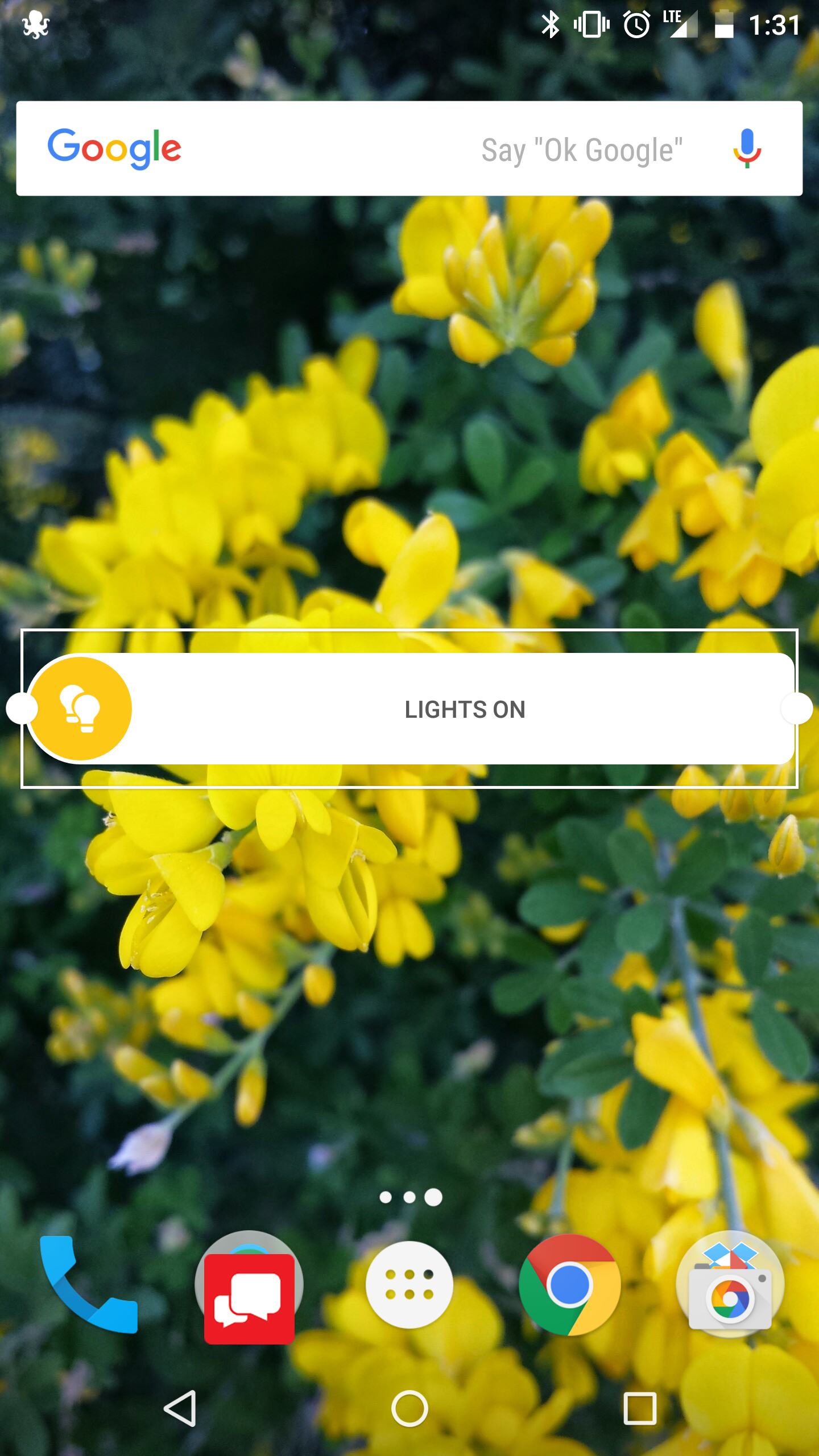
- Tap the widget to trigger a scene.
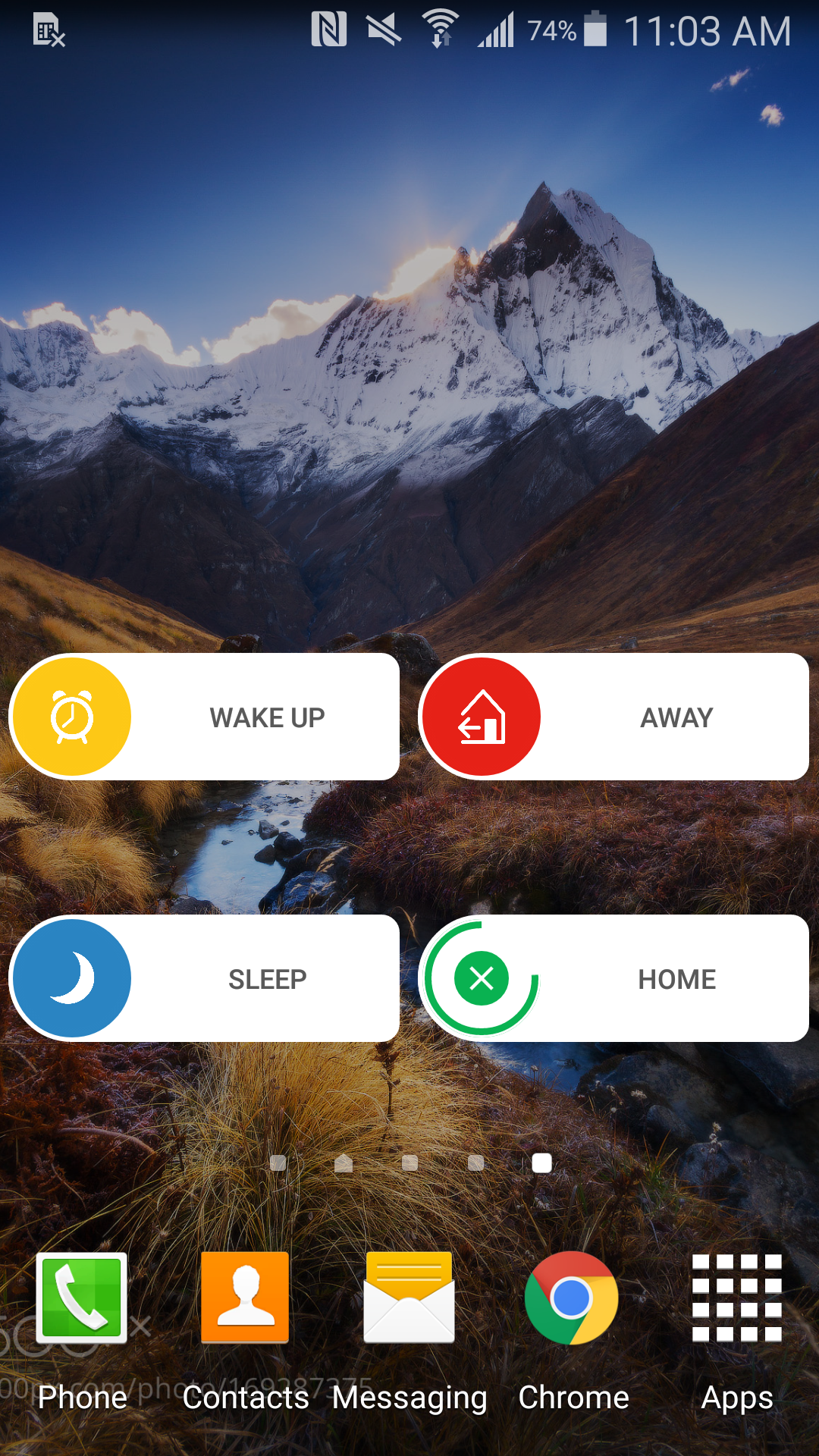
Note: An X will appear in the center of the circle, and a timer bar will appear and disappear after three seconds. If X is tapped within the 3-second time window, the scene triggering will be canceled.
Scenes are edited from the Scenes sections of the Alarm.com customer website or Alarm.com app, so any adjustments desired to be made to widgets will need either a scene adjustment or a new scene with a corresponding new widget.
CALL +1-800-393-6461 or fill out the form for a free quote.
Get protected with industry leading no-contract security systems, automation & more. Call now or fill out the form to get started.
- Honest, Straight Forward Pricing
- True Local Texas Company
Highest Quality Equipment
No Hidden Fees
- Industry Leading Response Times
5-Diamond Alarm Monitoring
